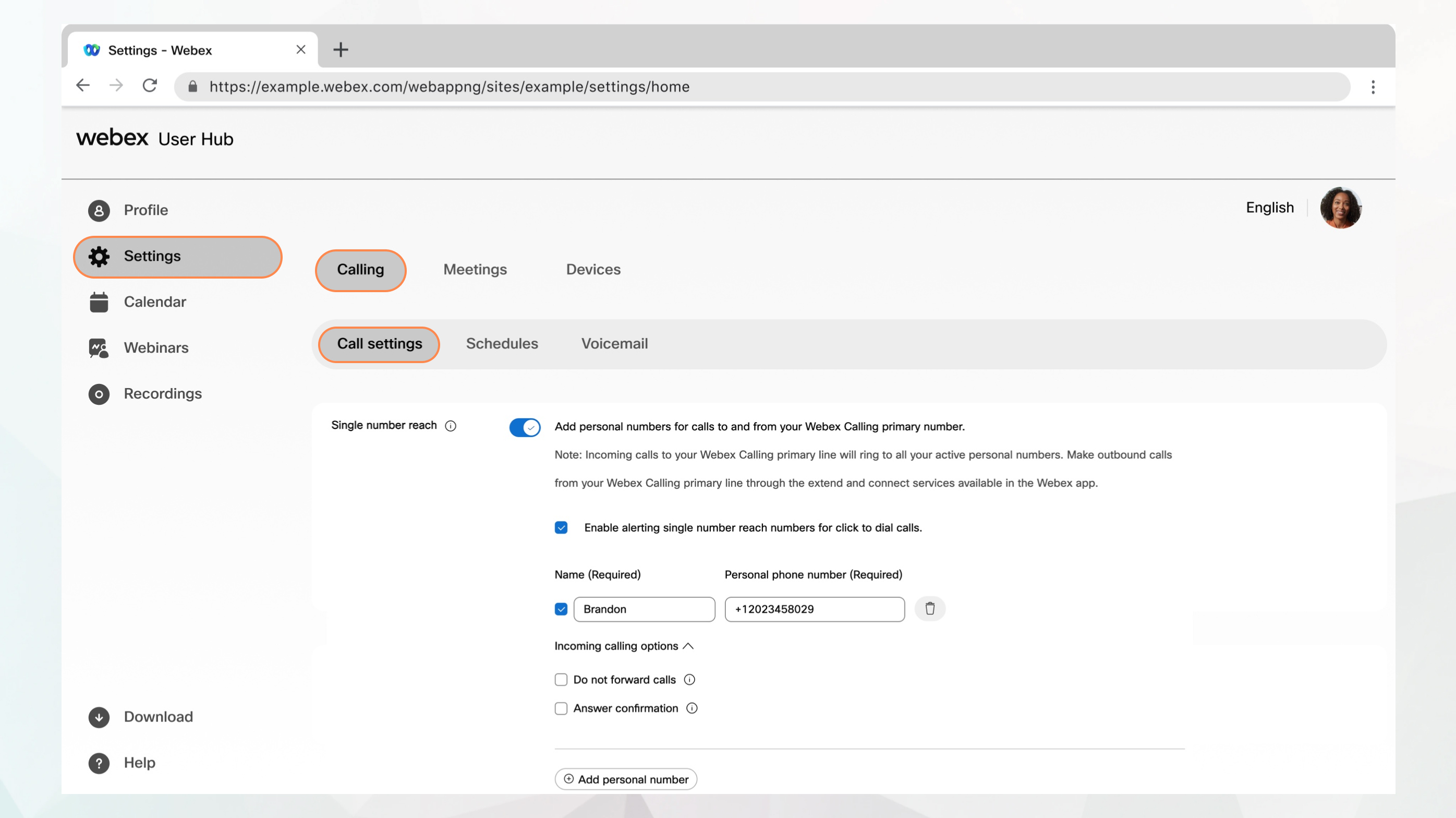
Configure Single Number Reach
Set up your work calls ring any phone number. When you get a call, your Webex App or device rings, along with any other numbers you've set up. Outgoing calls display your primary number as caller ID.
1
Sign in to User Hub.
2
Go to Settings > Calling > Call settings.
3
Go to the Single number reach (office anywhere) section and turn on the toggle.
4
Select Name and Personal phone number to add a name and phone number to be used as your single number reach number.
Once you add a phone number, the number gets activated. To deactivate, uncheck the box next to the phone number.
Select any of the following Incoming calling options:
Do not forward calls—Your calls aren't forwarded, even if you've call forwarding enabled.
Answer confirmation—When someone calls you, they're prompted to press a key before being connected. Use this option if you want your callers to know that their call is automatically going to your single number reach (office anywhere) number.
Click Save.
You can add another personal number by clicking Add Another Personal Number and then following the previous steps.