Set or reset your voicemail PIN
You can create a voicemail PIN if your administrator hasn't provided you, or change your PIN if you forget it at any time from User Hub.
Keep in mind that Webex users can't set up a second voicemail account.
Your administrator must have enabled the voicemail feature for you to access and configure various settings. If you’re not finding any voicemail settings such as reset pin, voicemail greetings or notifications, check with your administrator.
You can configure all the call settings from User Hub by navigating to Settings > Calling.
1
Sign in to User Hub.
2
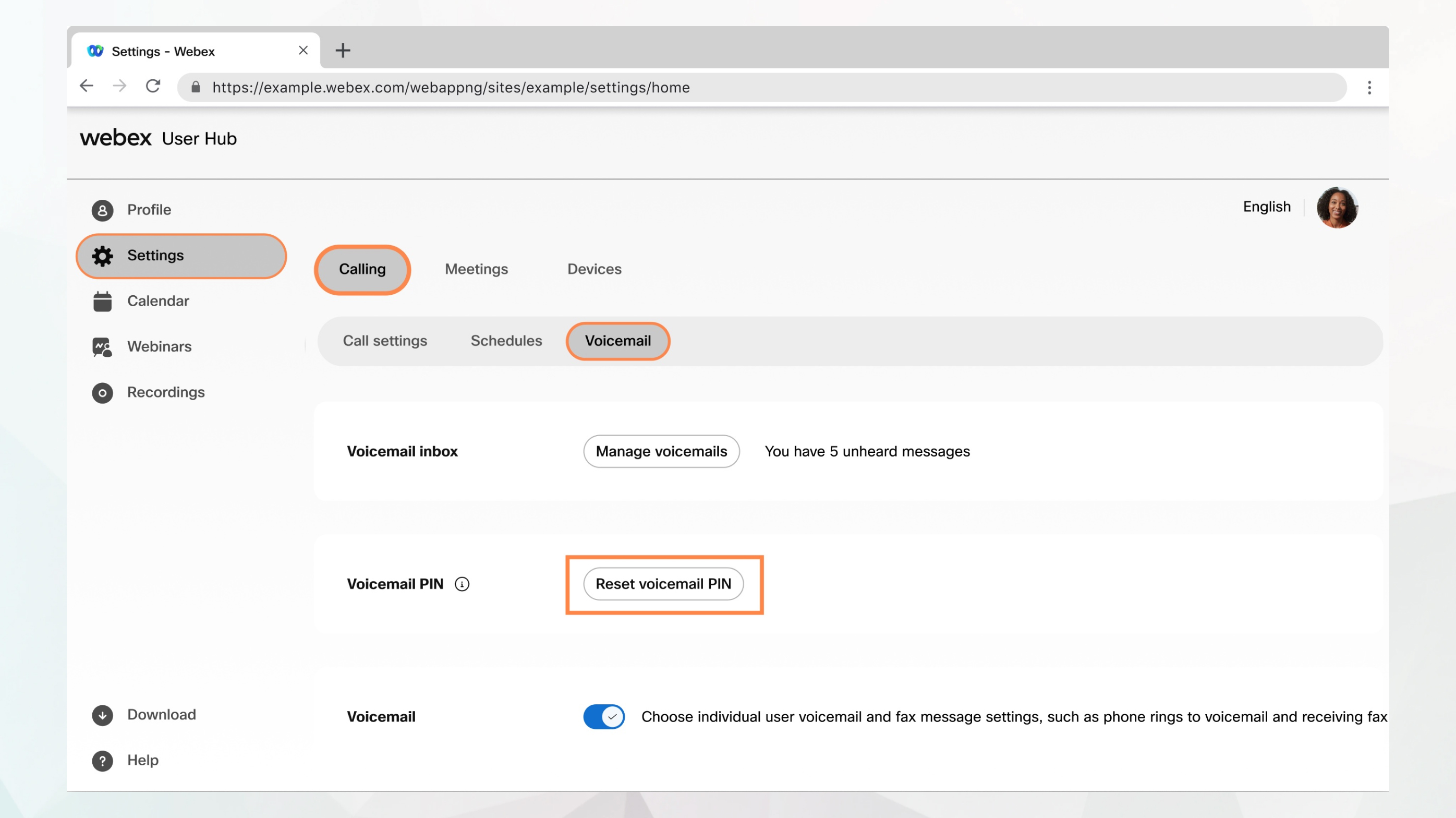
Go to Settings > Calling > Voicemail.
3
Go to the Voicemail PIN section and then click Reset voicemail PIN.
4
Enter your New Voicemail PIN.
The PIN should meet the following requirements:
Must be between 6 and 30 digits.
Must not contain repeated patterns. For example, 121212, 123123, or 13571357 is invalid. But if you enter 1235123, it is valid.
Must not contain your phone number or extension in forward or reverse order. For example, your extension is 147869. A PIN of 9147869 or 9968741 are invalid, since they contain the extension in forward or reverse.
Must not be contained within your phone number or extension in forward or reverse order. For example, if your phone number is +13015551212, then a PIN of 5551212 is invalid since it is contained within the phone number in forward, and a PIN of 2121555 is invalid since it is contained within the phone number in reverse.
Must not contain the same digits four or more times in a row. For example, 222211, 888888, or 9099991.
Must not contain four or more ascending digits or descending digits. For example, 123456 or 987654.
Must not be your current PIN in reverse order. For example, If your current PIN is 226897, you must not enter 798622 as a new PIN.
Must not contain any of your last 10 PINs. This is a default rule set by Webex Calling, it is configurable by an administrator using Webex Calling API only.
5
Re-enter your PIN in Confirm Voicemail PIN and click Submit.