To start using the Cisco Call, you need to sign in to your Webex account first.
Open the Webex App, sign in to your Webex account, and then close the app. Once signed in, you're ready to start using the Cisco Call integration in the Microsoft Teams.
Opening the Webex App to sign in is a one-time activity. If the Webex App isn’t visible on your desktop, it's likely that your admin has hidden it to enhance the experience. In this case, you need to search for the Webex App initially to open it.
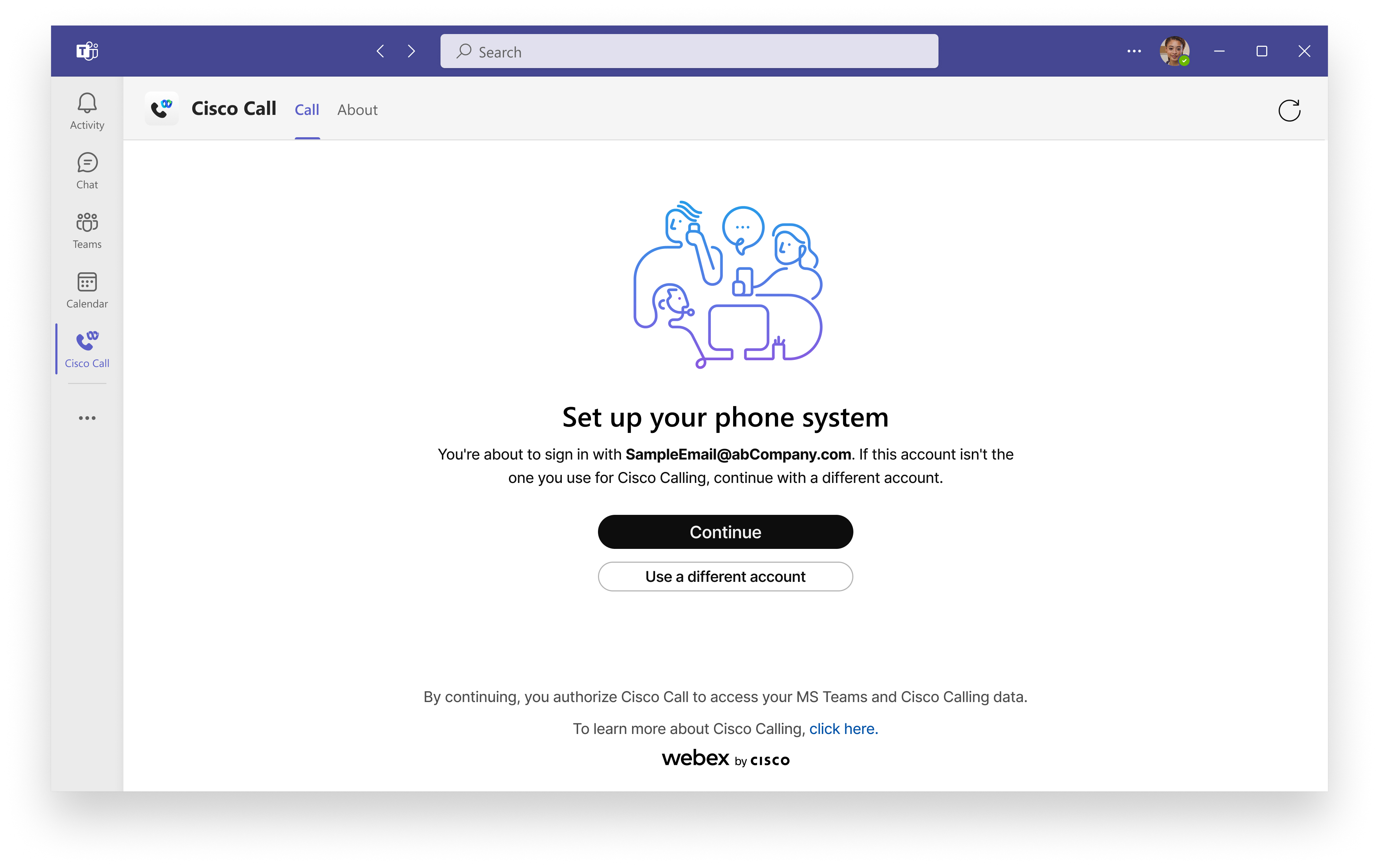
Go to Microsoft Teams, click Cisco Call  , and then click Continue if you’re using the same Microsoft Teams account for Webex.
If you're using a different account for Webex, then click Use a different account and sign in with your Webex email address and password.
After signing in, you can find all the calling features under Cisco Call option.
Make a call
You can make a call directly from the Microsoft Teams mobile app using the dialpad of the Cisco Call app or using the Cisco Call app as a messaging extension in one-on-one chat and group chat.
From dialpad
1
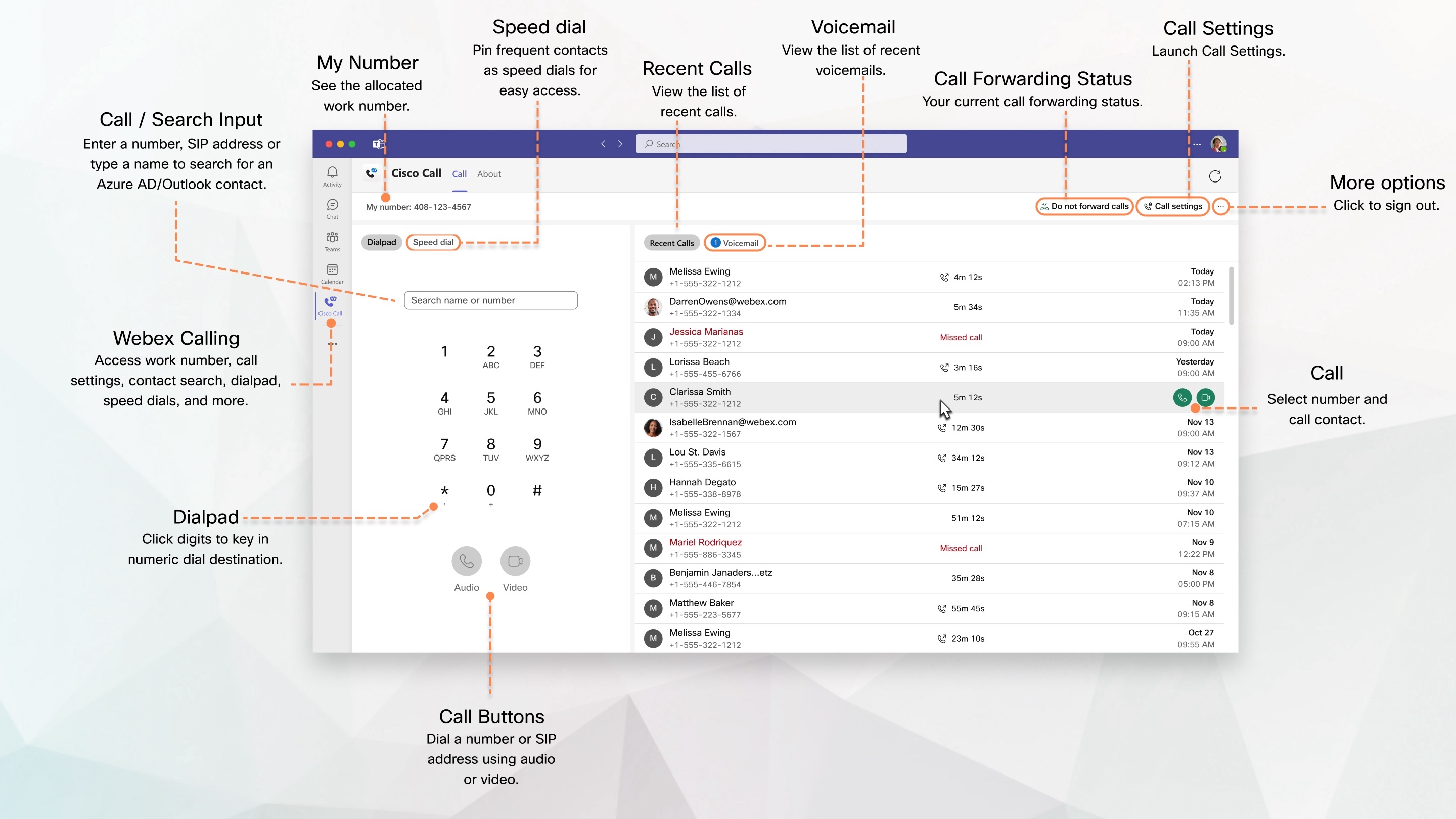
Click Cisco Call and start typing a name, telephone number, or video address of the person you want to call.
2
Select the contact and click  or
or  to connect.
From chat
1
In direct chat, click Cisco Call below the message window.
2
From the contact card, select the number from the drop-down list.
3
Click or to connect.
The app opens in a new window.
From channel
Use Cisco Call to call another member in the channel without creating a direct space.
1
In a channel, click Cisco Call in the message window.
2
Start typing the member's name in the Select or search field, then select their name.
(Optional) Click the drop-down under their name to change the outbound call options.
3
Click or to connect.
Manage speed dial
Add up to 20 contacts inside or outside of your Outlook or Azure Active Directory as speed dials. The app saves your speed dials to your Microsoft 365 profile so you can call your most frequent contacts quickly and easily.
1
Click Cisco Call and then click Add a speed dial.
2
Type the name of a directory contact, or for a custom contact.
The Name field has a maximum character limit of 100, and the Phone field has a maximum character limit of 50.
3
Click Add.
You can also edit, re-arrange, and delete the speed dial contact.
View recent calls
See up to 20 of the calls you've made, received, and missed in the last 7 days in your Recent calls. You can even call them back at the same number they called you from. The contact name, phone number, and call type isn't displayed for unknown numbers.
BroadWorks administrators must enable unified call history to ensure this feature works correctly. See Webex for Cisco BroadWorks Configuration Guide for more details.
1
Click Cisco Call and then click Recent calls.
2
To quickly connect, hover over a call log and click or .
3
To delete a call log, hover over a call log, click  and then click Delete call history.
Recent calls list is auto-refreshed every one minute so that you have the visibility of the latest recent call records.
Listen to voicemails
You can view up to 20 voice messages received in the last 7 days. A blue badge appears next to the voicemails that are unread.
1
Click Cisco Call and then click Voicemail.
2
Hover over a voicemail and click  to listen to the message.
You see the voicemail transcription only if you're set up with Webex Calling.
To quickly connect with the person who sent you the voicemail, hover over a voicemail and click or .
To listen to your voice messages from the voicemail portal, click Call Voicemail  at the right corner and follow the prompts.
The voicemail list is auto-refreshed every one minute so that you have the visibility of the latest voicemail records.
Find your work phone number and access call settings
Click Cisco Call and you can find My number at the top left corner which shows your work number.
Access and update Webex App call settings directly from the Cisco Call integration in the Microsoft Teams, without having to interact directly with the Webex App.
1
Click Cisco Call and then click Call Settings.
2
Update your settings and click Save.
Manage all your phone calls in one place
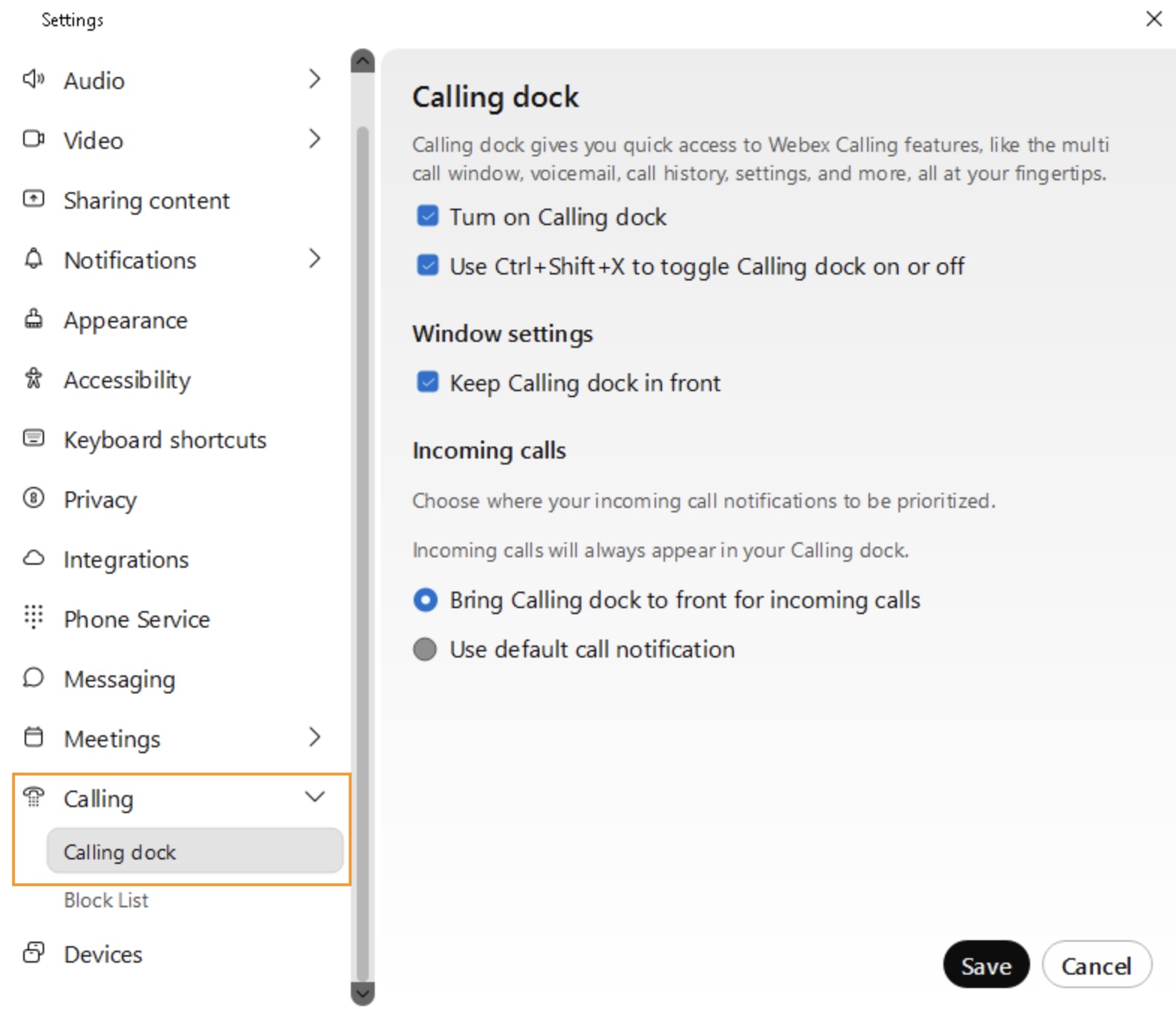
Manage multiple lines or shared line in a single window. With the calling dock window (multi call window), you can make and answer calls, get a quick view of your line status, and easily access some common calling features, such as mute, hold, share, conference, park, barge, transfer, and record.
You can enable this feature directly from the integration landing page or from call settings.
To enable it from the integration landing page, click the More option at the right corner and then enable or disable the Calling dock toggle.
To enable it from call settings, perform the following steps:
1
Click Cisco Call and then click Call Settings.
2
Go to Calling > Calling dock.
3
Choose one or both of the available options to turn on the calling dock:
Select Turn on Calling dock.
To use a keyboard shortcut, select Use Ctrl + Shift + X to toggle Calling dock on or off.
4
Click Save.
Forward your phone calls
If you're going to be away but don't want to miss an important call, you can forward your calls to another phone number. Or, if you don't want to be interrupted, you can send all your calls to voicemail instead.
1
Click Cisco Call and then click Call Settings.
2
Under Call Forward, click  to add a number to forward the calls to or choose Voicemail option to forward the calls to voicemail.
After you've enabled the call forwarding, the call forwarding status appears beside the Call settings option on the landing page.
Mute Cisco calls when on Teams meeting or call
You can mute notifications for incoming Cisco calls when you are in a Microsoft Teams meeting or call. You can also set up to decline the calls automatically. Any unattended calls are listed as missed calls under Recent Calls.
To mute notifications when you’re in either a Microsoft Teams call or meeting, or a Cisco call or meeting, your administrator must enable the Optimize Webex App for Microsoft Teams experience option in the Control Hub, and you need to enable the following settings.
If your administrator has disabled the feature and you’ve enabled it, then it only mutes notifications when you’re in a Cisco call or meeting.
1
Click Cisco Call and then click Call Settings.
2
Go to Notifications > Calls.
3
Under Direct calls, choose Only mute notifications when I’m in a meeting or on a call. If you want to decline the call, select Automatically decline incoming calls.
4
Click Save.
Update your location for emergency services
Depending on how your administrator has set up your account and whether the country you're in supports Enhanced 911 (E911) integration, Cisco Call integration may prompt you to update your location.
You're prompted to update your location when you're first set up with E911 service and every time you change locations after that.
An alert appears next to the More option at the right corner when the address needs to be updated.
1
Click the More option and click E911.
2
Update your address and click Save.
Related videos